
Playing Uno 60 AAC Template for TD Snap
The one-page pack for playing the card game Uno: whose turn it is, the special cards, the colors, and everything a player says when the game gets exciting.
At a glance
- App: TD Snap
- Grid: TD Snap, 9 x 7 page grid
- Pages: one page
- Cost: Free, no account required
Version 1, released October 21, 2026.
What’s on the pages
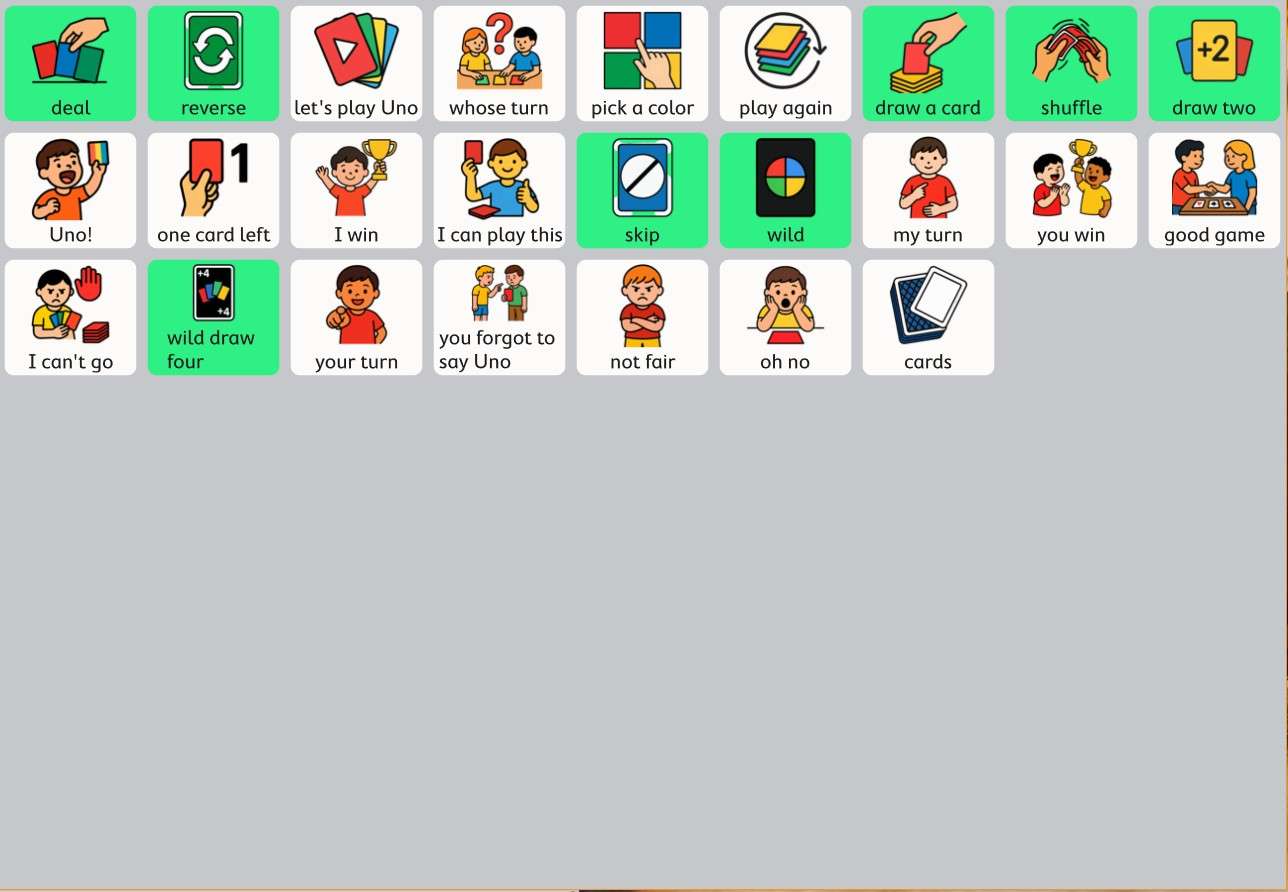
What the pages are
Playing Uno 60. let’s play Uno, Uno!, my turn, your turn, whose turn, one card left, you win, you forgot to say Uno, pick a color, I win, good game, not fair, play again, I can play this, I can’t go, draw a card, deal, shuffle, skip, reverse, draw two, wild, wild draw four, red, blue, green, yellow, cards, same and oh no.
What’s included
- Every special card: skip, reverse, draw two, wild, wild draw four
- The four colors
- Things players say: one card left, oh no, not fair, you win, good game
- Our own pictures travel inside the file, so they look the same on every device
Why themed Voice Packs work
It is one game, so it is one page. A child can call their turn, ask whose turn, say pick a color, draw two, skip and reverse, and then the things players really say: one card left, you forgot to say Uno, oh no, not fair, you win, good game.
The card pictures are plain and generic, so they work with any deck.
Motivation drives AAC use. A child handed a board full of clinical vocabulary has little reason to reach for it; a child who can talk about what they already care about has every reason. Themed Voice Packs are not a replacement for a robust core-word system; they sit alongside it. More on core words and themed boards.
These pages are for joining in, reading together and modeling. Keep teaching where each word lives in your child’s main WordPower vocabulary too.
How to install
- Download the file above and unzip it. Inside is one TD Snap page set file (.spb).
- Put the .spb file on the device: on an iPad, save it to Files under On My iPad > TD Snap.
- In TD Snap, tap Edit, then an empty button, then Link to Page > Import and link to page > From a local file, and choose the file. Pick the template’s first page as the page to link.
- Tap Done. The new button opens the template; the row along the bottom of every page moves between its pages.
- There is a one-minute video of these steps: youtu.be/lAYY34VTAro.
Before you import
- TD Snap templates are new for us. Tell us how the import goes, good or bad, with the Report a Problem form below; it shapes every TD Snap template we build next.
- TD Snap gives the new button a Speak action, so it says the template’s name when tapped. Delete that action in Edit if you would rather it only open the pages.
- A few words use pictures from your own TD Snap symbol library, so those can look different from our screenshots.
- Moving it to a student’s device? Import our whole .spb file there the same way, or, if you export or share it from TD Snap, choose Select All pages first. Sending only the page on screen keeps the buttons but loses the links between pages.
- If a symbol reads wrong to your child, or a word they need is missing, ask and it will be fixed.
- Need something changed, or a different grid size? Ask us.
Know when we add new templates
We build these from family requests and give them all away. Drop your email and we’ll tell you when new ones land, nothing else, ever.
Something wrong with this template? Tell us and we will fix it — a button with the wrong picture or the wrong words is a word your child cannot use.
Also free for your other AAC app
Unofficial. Not affiliated with or endorsed by the owners of the shows, teams, games and characters named here, whose trademarks and copyrights they are. For rights holders